A document control register is a list of the documents your team uses, the revision in force, who owns it and where the approval record lives. It answers a practical question: if someone opens this procedure tomorrow, will they know whether they have the right copy?
The free Excel register below includes fictional examples and blank rows. It suits a small reporting, operations or quality team that needs an organised starting point. You can adapt the fields to your own document policy.
In this guide
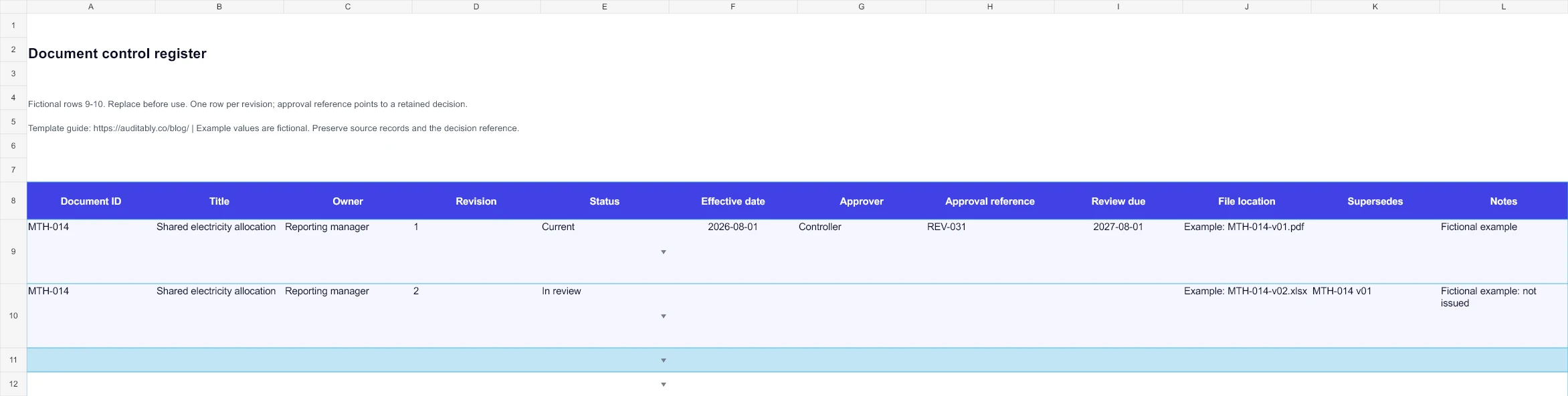
Preview the actual workbook
Fictional entries from the downloadable file. Open the image full-size to inspect the wide table.
What belongs in the register?
Start with documents that tell people how to work or record a decision: reporting instructions, calculation methods, review checklists and approved policies. Give each document a stable ID. Keep the ID when the document changes, then record the new revision separately.
For this template, use one row per document revision. That makes an older approved copy visible after its replacement arrives. A filter on status gives readers a shorter view of the current documents.
| Field | What to enter | Why it helps |
|---|---|---|
| Document ID | A stable identifier such as MTH-014 | Connects revisions of the same document |
| Title and owner | A clear name and responsible person or role | Gives questions somewhere to go |
| Revision | Your agreed revision label | Distinguishes the copy being discussed |
| Status | Draft, In review, Current or Superseded | Separates work in progress from the issued copy |
| Effective date | When the approved instructions start applying | Prevents a future procedure being used too early |
| Reviewer or approver | The person who made the decision | Identifies the decision owner |
| Approval reference | Link or ID for the retained decision | Lets another reader inspect the evidence |
| Review due | Your next scheduled review date | Makes the review queue visible |
| File location | A stable location with suitable access | Helps people reach the actual document |
| Supersedes | The previous revision ID | Keeps the sequence understandable |
The names in the reviewer and approver columns are entries in a spreadsheet. They do not, on their own, prove that those people approved anything. Keep the associated email, workflow record or signed decision and reference it in the register.
A worked revision example
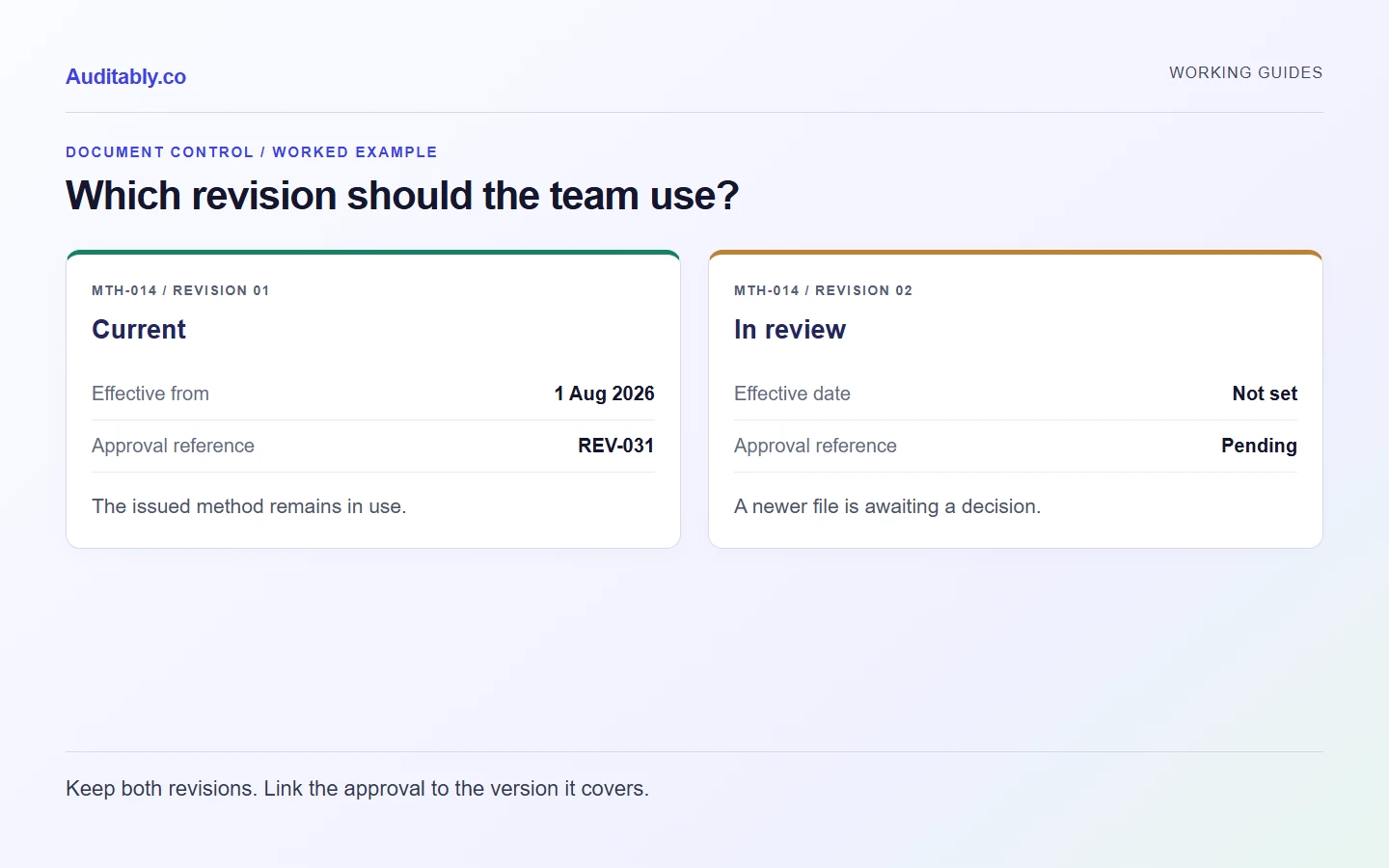
Imagine a property group changes the way it allocates shared electricity between two sites. Its reporting method is MTH-014. Revision 01 was approved in August. Revision 02 is still under review in November.
| Document | Revision | Status | Effective date | Decision reference |
|---|---|---|---|---|
| MTH-014: shared electricity allocation | 01 | Current | 2026-08-01 | REV-031 |
| MTH-014: shared electricity allocation | 02 | In review | Not set | Pending |
Revision 02 should not become current simply because its filename looks newer. Once the responsible person approves it, record that decision, set its effective date and mark revision 01 as superseded. Preserve revision 01 if it supported an earlier reporting period.
This is a fictional workflow example. Your organisation decides who can approve the method and how long each record must be kept.
How to use the Excel template
- Read the example rows, then replace them with your own records. Do not leave fictional records mixed into a live register.
- Agree one document-ID pattern and a short set of statuses. Avoid several labels that all mean “almost approved”.
- Add the owner and current file location before inviting the team to use the register.
- Fill approval references only when the underlying decision exists.
- Filter for Current when issuing instructions. Filter for In review and review dates when planning follow-up.
- Add a new row when a revision changes. Keep the old row and point the new one to it.
The workbook contains 50 prepared record rows, dropdown statuses and two example entries at the top. It has no macros or connection to Auditably. Its links and permissions depend on the storage system you use.
Three mistakes that make a register unreliable
Replacing the file behind an unchanged link. The register can appear complete while the linked document has changed. Use a retained revision link where your document system supports one, or preserve an identifiable issued copy.
Using a review date as an approval date. A review can identify work still needed. Record its outcome before changing the status.
Tracking requests and documents in the same row. “Please send the September invoice” is a request. The invoice received is a document. Keep the request ID in your PBC tracker and cross-reference the document when it arrives.
Can a spreadsheet be enough?
For a small team with clear ownership and suitable storage, it can be a useful register. The harder question is whether your team consistently retains the document, the decision and the correct revision. SharePoint and OneDrive offer version history, including access to earlier versions. Check the actual configuration and permissions before relying on it. Microsoft explains those capabilities here.
Move to a more controlled workflow when missed approvals, inaccessible files or unclear revisions become recurring problems. Buying software will not settle an unclear ownership policy by itself.
Related working guides
- PBC list template and evidence requests
- Audit evidence filenames and a free builder
- Version history and audit records compared
Prepared with AI assistance using the linked sources and original worked examples. Illustrative records are fictional. No customer results, independent specialist review or hands-on software testing are claimed.